> ## Documentation Index
> Fetch the complete documentation index at: https://docs.cognigy.com/llms.txt
> Use this file to discover all available pages before exploring further.
# Webchat v2: Key Features
> Explore Cognigy Webchat v2 key features including Quick Replies, gallery cards, buttons, and various message output types for richer chat interactions.
As of Cognigy.AI 4.83.0, Webchat v2 is deprecated. Webchat v2 will be retired in February 2026. During this time, only important security updates will be provided for v2, with no further feature additions.
Before support for Webchat v2 ends, [migrate](https://docs.cognigy.com/webchat/migration/) to Webchat v3.
Cognigy Webchat v2 offers several key features aimed at enhancing user interaction and navigation within conversations.
## Chat UI
When you use message Nodes such as [Say](/ai/agents/develop/node-reference/basic/say), [Question](/ai/agents/develop/node-reference/basic/question), or [Optional Question](/ai/agents/develop/node-reference/basic/optional-question) Nodes, the following output types can be used within these nodes to display different message formats in the chat.
### Quick Replies
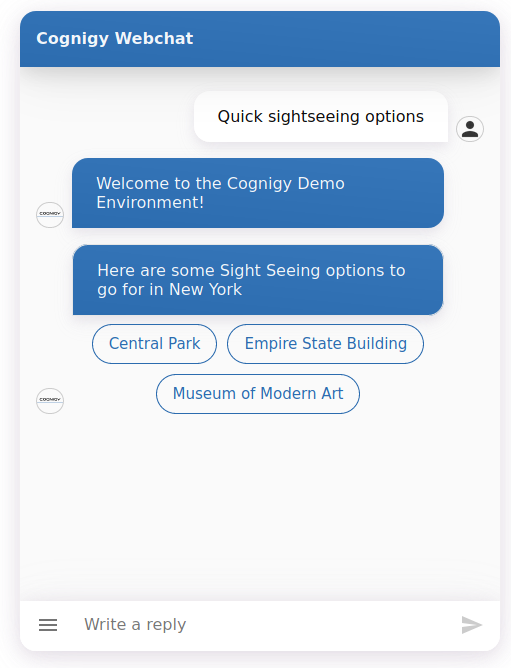
With Quick Replies, you can guide users through conversations by offering example phrases for replies. When users click a Quick Reply, they'll send a pre-configured message defined by you, facilitating smoother interactions.
 ### Gallery
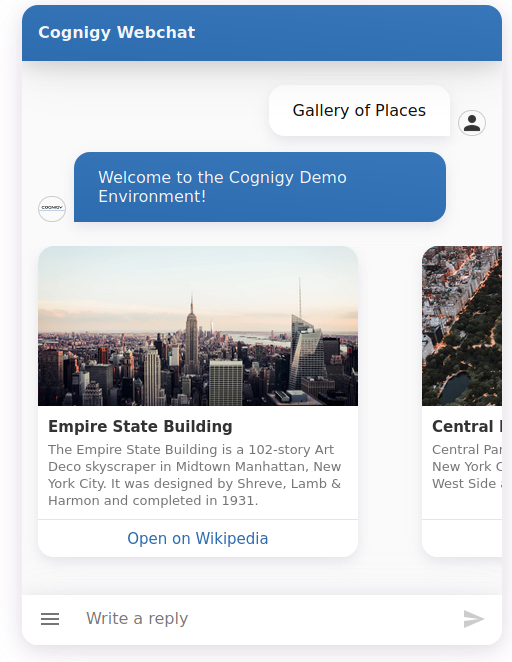
To present structured content interactively, use the Gallery. It allows you to showcase one or more items with an image, a title, a subtitle, and optional buttons containing links or pre-configured messages.
### Gallery
To present structured content interactively, use the Gallery. It allows you to showcase one or more items with an image, a title, a subtitle, and optional buttons containing links or pre-configured messages.
 ### List
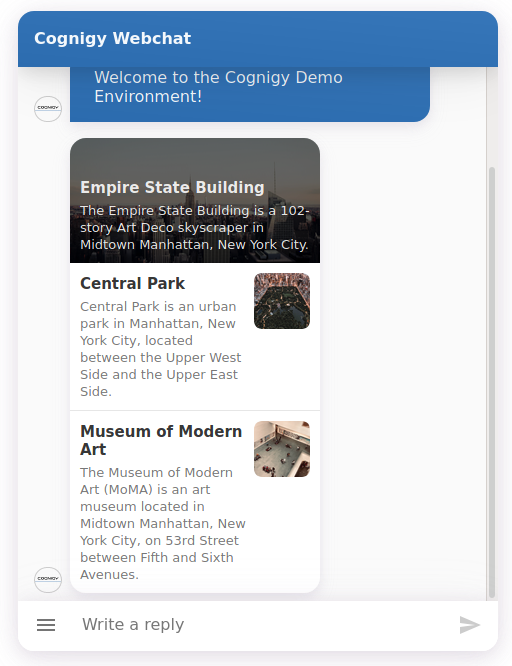
The List feature enables you to present 2-4 list options to users,
ideal for scenarios where users need to view all options at once. It's a preferred alternative to the Gallery for such cases.
### List
The List feature enables you to present 2-4 list options to users,
ideal for scenarios where users need to view all options at once. It's a preferred alternative to the Gallery for such cases.
 ### Audio
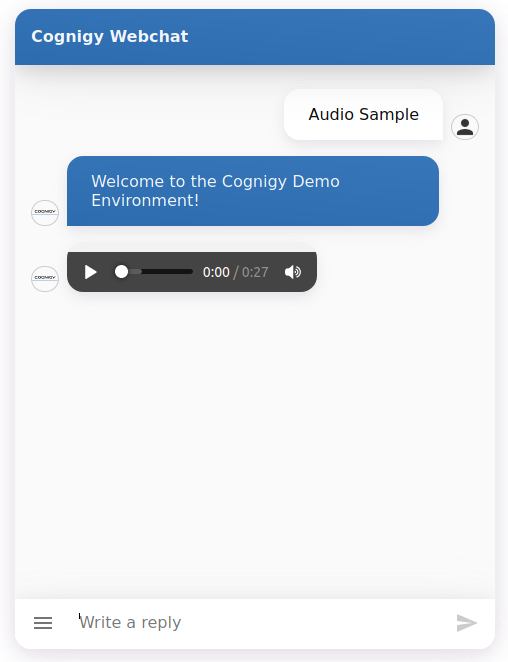
The Audio feature enables you to send audio files. Users will see a web player and can play the file instantly.
### Audio
The Audio feature enables you to send audio files. Users will see a web player and can play the file instantly.
 ### Image
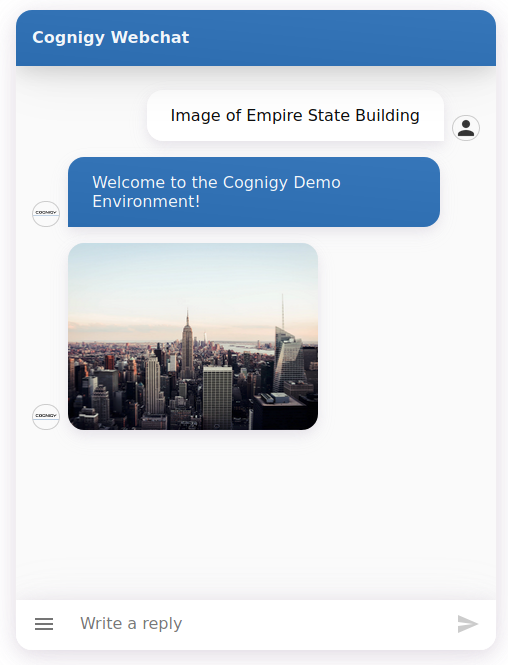
The Image feature enables you to send image files. Users will view the image in a fixed aspect ratio.
### Image
The Image feature enables you to send image files. Users will view the image in a fixed aspect ratio.
 ### Video
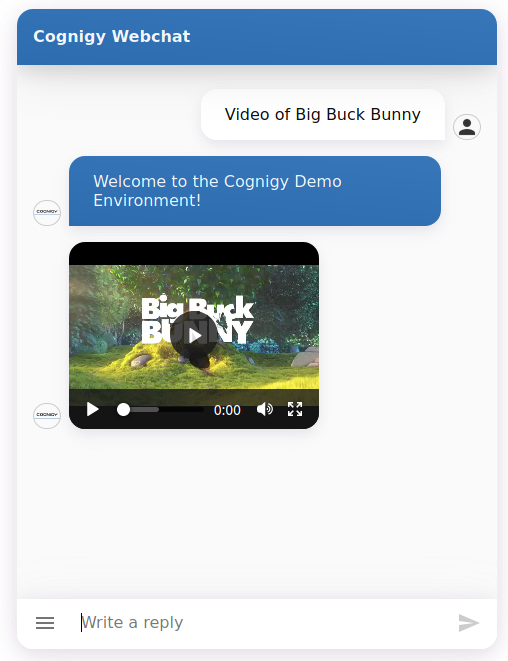
The Video feature enables you to send video files. Users will see a web player and can play the file instantly.
### Video
The Video feature enables you to send video files. Users will see a web player and can play the file instantly.
 ### Text with Buttons
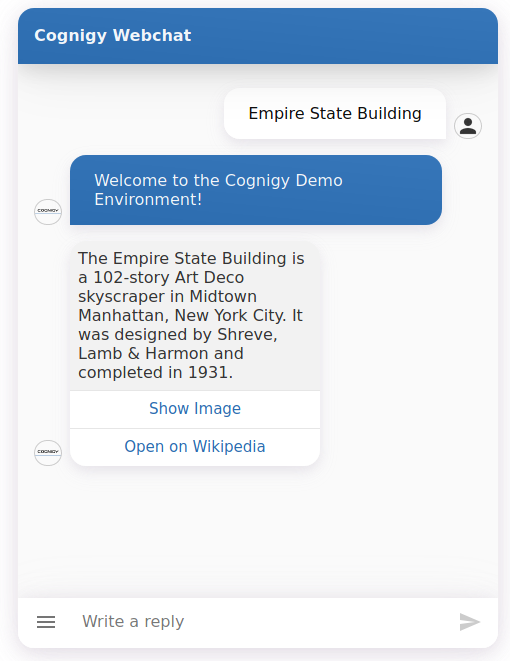
If you require navigation options for users without the need for rich structuring, as the Gallery, you can use the Text with Buttons.
### Text with Buttons
If you require navigation options for users without the need for rich structuring, as the Gallery, you can use the Text with Buttons.
 ## Date Picker
Whenever your AI Agent prompts for a date input via the Webchat, users can select the date using an interactive Date Picker.
## Date Picker
Whenever your AI Agent prompts for a date input via the Webchat, users can select the date using an interactive Date Picker.
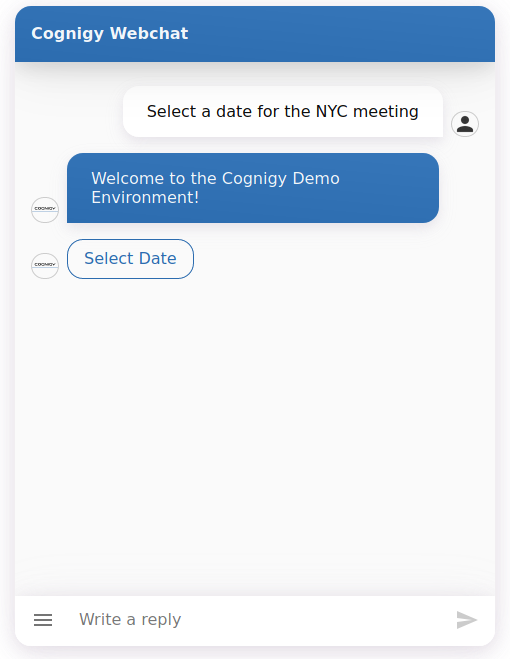 After clicking the Date Picker button, a full-screen overlay will appear in the Webchat, allowing the user to choose a date within the constraints defined by the AI Agent.
 To use a Date Picker, add the [Date Picker](/ai/agents/develop/node-reference/data/datepicker) Node within your Flow.
## Persistent Menu
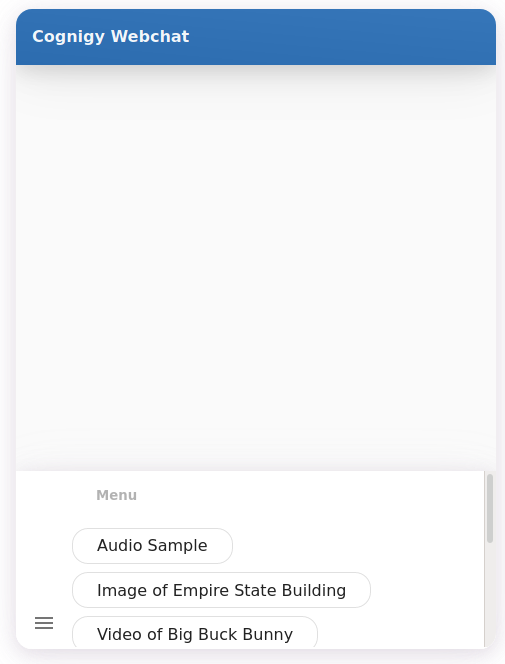
If your bot contains a broad and deep set of features, it may be helpful for users to be able to use a menu for navigation. The Persistent Menu solves this issue by providing a set of pre-defined messages (like Quick Replies) that can be accessed from the input bar at any point in the conversation.
To use a Date Picker, add the [Date Picker](/ai/agents/develop/node-reference/data/datepicker) Node within your Flow.
## Persistent Menu
If your bot contains a broad and deep set of features, it may be helpful for users to be able to use a menu for navigation. The Persistent Menu solves this issue by providing a set of pre-defined messages (like Quick Replies) that can be accessed from the input bar at any point in the conversation.
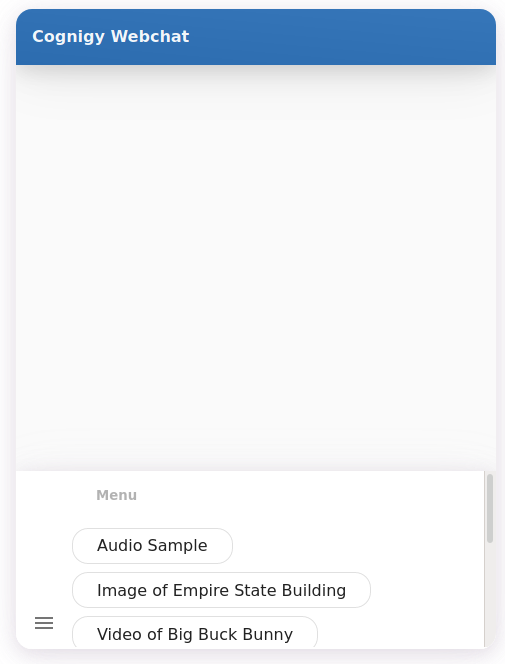 To configure the Persistent Menu, use the [Persistent Menu](/webchat/v2/configuration#persistent-menu) settings.