> ## Documentation Index
> Fetch the complete documentation index at: https://docs.cognigy.com/llms.txt
> Use this file to discover all available pages before exploring further.
# Carriers
> Connect SIP trunks to Voice Gateway by configuring carriers. Set up SIP encryption, outbound authentication, and use predefined carrier templates.
Updated in 2026.15
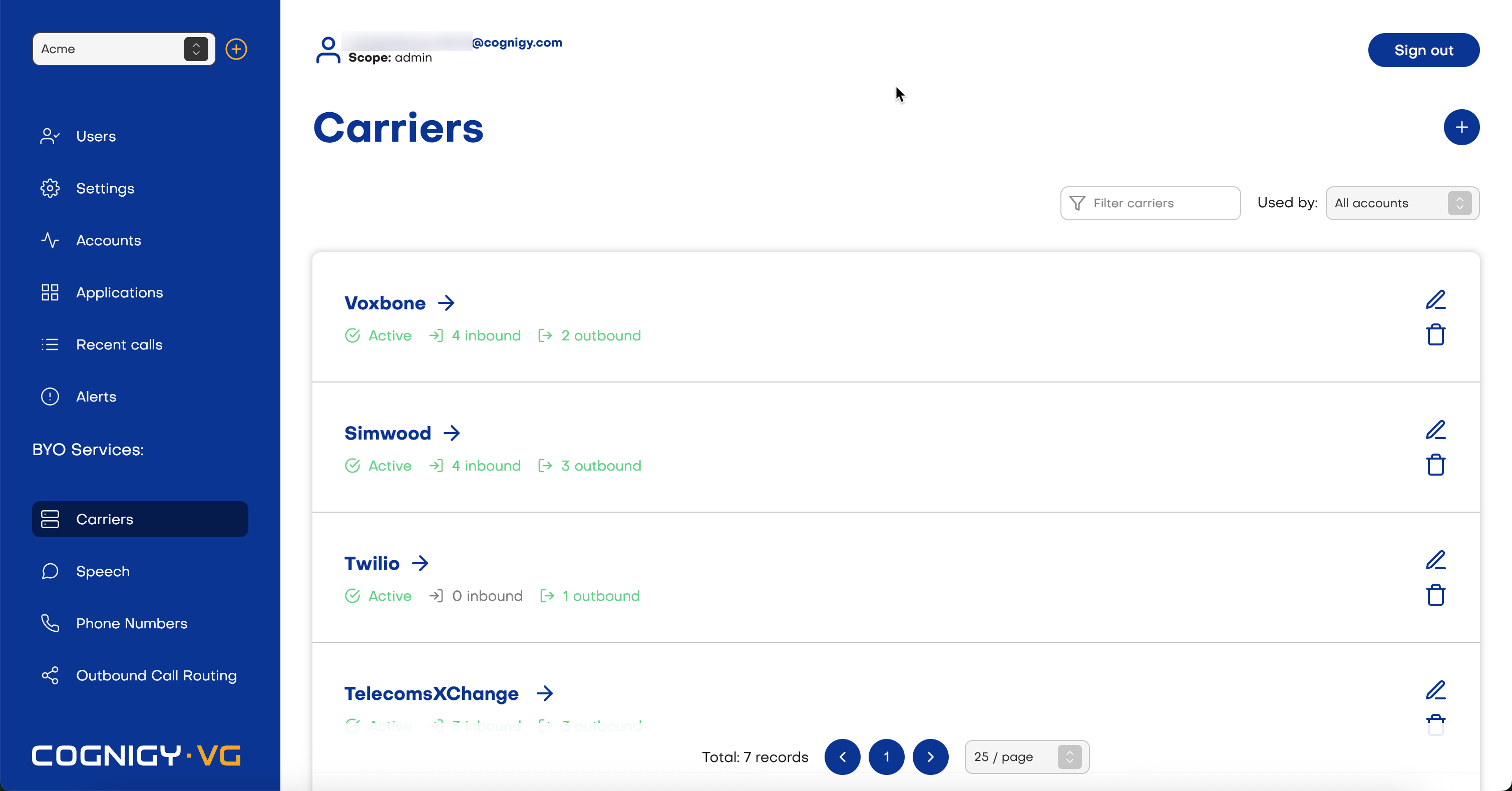
*Carriers* allow you to connect your SIP Trunk with Voice Gateway.
A carrier represents the configuration of a [SIP trunk provider](/voice-gateway/references/sip-trunk-providers) and defines how Voice Gateway routes inbound and outbound calls.
If you have an Account scope, you can only edit carriers you have created, as well as carriers created by other users with the same scope. You can still use and view carriers shared by Service providers or Admins.
 ## Settings
| Settings | Description | Scope |
| --------------------------- | ---------------------------------------------------------------------------------------------------------------------------------------------------------------------------------------------------------------------------------------------------------------------------- | -------------------------------- |
| Register status | The current registration state of the Voice Gateway Carrier (client) with the SIP trunk provider (server).
## Settings
| Settings | Description | Scope |
| --------------------------- | ---------------------------------------------------------------------------------------------------------------------------------------------------------------------------------------------------------------------------------------------------------------------------- | -------------------------------- |
| Register status | The current registration state of the Voice Gateway Carrier (client) with the SIP trunk provider (server).
This option is activated if you set up [Outbound Authentication](#outbound-authentication). For more information, see [Register Status](#register-status). | Account, Service Provider, Admin |
| Name | SIP Trunk Name. | Account, Service Provider, Admin |
| Select a predefined carrier | Pre-configured list of SIP Trunks. | Account, Service Provider, Admin |
| Active | Enable or disable the carrier. | Account, Service Provider, Admin |
| E.164 Syntax | Defines a general format for international telephone numbers. | Account, Service Provider, Admin |
| Outbound Authentication | Using a username and a password for the [authentication](#outbound-authentication). | Account, Service Provider, Admin |
| Prefix | Is used to match a specific pattern of digits in the dialed number and route the call accordingly. | Account, Service Provider, Admin |
| SIP Diversion Header | Means a header used to support PSTN redirecting services such as Call Forwarding. | Account, Service Provider, Admin |
| SIP Gateways | Add the Network Address / Port / Netmask of your carrier. You can select the direction of calls: Outbound, Inbound, or both. | Account, Service Provider, Admin |
## Genesys Audio Connector Carrier
A *Genesys Audio Connector* carrier is a special carrier that connects Genesys Cloud to Voice Gateway using the AudioHook WebSocket protocol instead of SIP.
Because this carrier only receives audio from Genesys Cloud and uses a built-in SIP gateway, several carrier settings aren't needed and are hidden, including E.164 Syntax, Outbound Authentication, Tech Prefix, SIP Diversion Header, and SIP Gateways.
To use a Genesys Audio Connector carrier, refer to the [Genesys Audio Connector](/voice-gateway/genesys-audio-connector).
## Add a Carrier
To add a new carrier, follow these steps:
1. In the left-side menu of the Voice Gateway Self-Service Portal, select **Carriers**.
2. Click **+** in the upper-right corner.
3. In the **Carrier name** field, enter a unique name for your SIP trunk.
4. *(Optional)* Click **Select a predefined carrier** and select a [SIP trunk provider](/voice-gateway/references/sip-trunk-providers) from the list. The carrier fields will be prefilled with standard values for the selected provider. You can customize them later.
5. Make sure the **Active** setting is enabled.
6. *(Optional)* Enable the **E.164 Syntax** setting if your provider requires phone numbers in the international [E.164](https://en.wikipedia.org/wiki/E.164) format.
7. In the **SIP Gateways** section, click  to add a SIP gateway.
1. Configure the SIP gateway settings:
* **Network Address** — enter the IP address or hostname provided by your SIP trunk provider.
* **Port** — the default port is `5060` for UDP/TCP or `5061` for TLS or TLS/SRTP.
* **Netmask** — enter the netmask provided by your SIP trunk provider.
2. Select the call direction: **Inbound**, **Outbound**, or both. For outbound calls, you can additionally configure [outbound authentication](#outbound-authentication) and [SIP encryption](#sip-encryption-for-outbound-calls).
3. Make sure the **Active** setting is enabled.
8. Click **Save**.
The carrier is created and can now be assigned to a [phone number](/voice-gateway/webapp/phone-numbers) or used in [outbound call routing](/voice-gateway/webapp/outbound-call-routing).
## Outbound Authentication
*Outbound authentication* is helpful in SIP setups where security and access control are crucial.
It prevents unauthorized users from initiating calls or accessing SIP servers.
The process of authentication in SIP involves verifying the identity of the Voice Gateway Carrier (client) as it attempts to access the [SIP trunk provider](/voice-gateway/references/sip-trunk-providers) (server). This access includes registering with a SIP server and initiating calls.
To set up the outbound authentication process, follow these steps:
1. In the left-side menu of the Voice Gateway Self-Service Portal, select **Carriers**.
2. Go to the **Outbound Authentication** section and activate its setting.
3. Fill in the following fields:
* **Username** — the name of the user required for outbound call authentication.
* **Password** — the user password required for outbound call authentication.
to add a SIP gateway.
1. Configure the SIP gateway settings:
* **Network Address** — enter the IP address or hostname provided by your SIP trunk provider.
* **Port** — the default port is `5060` for UDP/TCP or `5061` for TLS or TLS/SRTP.
* **Netmask** — enter the netmask provided by your SIP trunk provider.
2. Select the call direction: **Inbound**, **Outbound**, or both. For outbound calls, you can additionally configure [outbound authentication](#outbound-authentication) and [SIP encryption](#sip-encryption-for-outbound-calls).
3. Make sure the **Active** setting is enabled.
8. Click **Save**.
The carrier is created and can now be assigned to a [phone number](/voice-gateway/webapp/phone-numbers) or used in [outbound call routing](/voice-gateway/webapp/outbound-call-routing).
## Outbound Authentication
*Outbound authentication* is helpful in SIP setups where security and access control are crucial.
It prevents unauthorized users from initiating calls or accessing SIP servers.
The process of authentication in SIP involves verifying the identity of the Voice Gateway Carrier (client) as it attempts to access the [SIP trunk provider](/voice-gateway/references/sip-trunk-providers) (server). This access includes registering with a SIP server and initiating calls.
To set up the outbound authentication process, follow these steps:
1. In the left-side menu of the Voice Gateway Self-Service Portal, select **Carriers**.
2. Go to the **Outbound Authentication** section and activate its setting.
3. Fill in the following fields:
* **Username** — the name of the user required for outbound call authentication.
* **Password** — the user password required for outbound call authentication.
These credentials are used by the SIP client to authenticate with the SIP trunk provider when making outbound calls.
4. Activate the **Require SIP Register** setting. This setting indicates whether the SIP trunk provider requires SIP registration before allowing outbound calls. SIP registration is the process where the SIP client registers its location and availability with the SIP server.
5. In the **SIP Realm** field, specify the domain associated with the SIP server, for example, `sip.nexmo.com`.
6. *(Optional)* In the **SIP From User** field, specify the user of the SIP From header, indicating the message's sender. This field can contain the name or telephone number of the Voice Gateway Carrier.
7. *(Optional)* In the **SIP From Domain** field, specify the domain of the SIP From header, indicating the message's sender. This field can contain the domain of your Voice Gateway installation.
8. Activate the **Use Public IP in Contact** field to determine whether to use the public Voice Gateway IP address when establishing contact with the SIP server. The public address will be transferred in the Contact header field.
9. Click **Save**.
10. At the top of the **Edit carrier** page, check whether the connection is established. If the registration is successful, the **Register status** section shows `200 OK` together with the registration details. For more information, see [Register Status](#register-status).
## Register Status
When the **Require SIP Register** setting is activated in the [Outbound Authentication](#outbound-authentication) section for a carrier, the **Edit carrier** page displays the **Register status** section. It displays the details of the latest `REGISTER` attempt and a history bar that shows recent attempts as a compact timeline. With this information, you can spot registration failures at a glance without searching through logs.
Your SIP trunk provider must support and set up SIP registration. Voice Gateway doesn't manage the registration setup with the provider. Check with your SIP trunk provider whether your SIP trunk supports SIP REGISTER.
Each bar segment represents one `REGISTER` attempt. The history shows up to 50 of the most recent attempts. The time period covered by the history depends on the registration expiration interval. Shorter intervals result in more frequent, recent attempts; longer intervals can span hours or days. Color indicates the result:
Successful registration.
Failed registration attempt with the SIP response code.
Failed registration attempt without the SIP response code.
You can also view the following details:
| Field | Description |
| ---------- | ---------------------------------------------------------------------------------------------------------------------------------------------------------------------------------------------------------------------------------------------------------------------------------------------------------------------------------------------------------------------------------------------------------- |
| Reason | The SIP response code that the provider returned, for example, `200 OK` for a successful registration or `403 Forbidden` for a failed one. For more information, see [SIP REGISTER Response Codes](/voice-gateway/references/sip-response-codes#sip-register-response-codes) or [Failures without a SIP Response Code](/voice-gateway/references/sip-response-codes#failures-without-a-sip-response-code). |
| Registered | The time when the registration was accepted. This field appears only for successful registrations. |
| Expired | The time when the registration expires. This field appears only for successful registrations. |
| Call-ID | The SIP Call-ID header value from the `REGISTER` request that uniquely identifies the exchange. |
| CSeq | The SIP command sequence number of the `REGISTER` request. |
Hover over a bar segment to view the time of the registration attempt.
If a PCAP file was captured for the `REGISTER` exchange, a **Download pcap** button appears in the **Register status** section. If no network exchange with the provider took place, for example, because of an incorrect network setup, no PCAP file is created and the link doesn't appear.
## SIP Encryption for Outbound Calls
Voice Gateway supports various methods of encryption for outbound calls:
* **SIP over TLS**. The standard Session Initiation Protocol (SIP) is used for signaling and establishing communication, where the SIP messages are encrypted with TLS. This type of encryption provides a secure channel for the signaling information. SIP over TLS is often considered more flexible as it allows for the use of existing SIP infrastructure and clients with TLS capabilities.
* **SIPS**. SIPS is a URI scheme specifically designed for secure SIP communication. It indicates that the SIP signaling should be encrypted with TLS once the connection is established. SIPS is simpler to set up as it's a dedicated scheme for secure SIP, but it might require more specific client and server configurations.
* **SIP over TLS/SRTP with Crypto padding**. This type of encryption serves as an additional security layer when using SIP over TLS/SRTP. The **Pad crypto** option adds extra data to the encrypted voice packets, making them even harder to decrypt. Adding extra data (padding) to voice calls can make it harder to spy on them, because it hides the true size of the information being sent.
Before 4.80 release, all connections were encrypted with SIPS by default. In some cases, the default SIPS setting could cause compatibility issues. Some SIP network elements, such as proxy servers, still use older systems that don't support [SIP hops](/voice-gateway/glossary#s) with SIPS encryption, causing the connection to fail. Starting from release [4.80](/release-notes/4.80), users can choose whether they want SIP, SIP over TLS, or SIPS encryption. All new carriers have SIP connection scheme by default. The existing carriers will retain their SIPS scheme.
Before you set up the SIP encryption, make sure you know the type of encryption most suitable for your organization.
To set up a SIP for outgoing calls, follow these steps:
1. In the left-side menu of the Voice Gateway Self-Service Portal, select **Carriers**.
2. Select the carrier you want to use for outbound communication.
3. Go to the **SIP Gateways** section.
4. Select an existing gateway you want to use for outbound communication or create a new one by clicking .
5. In the **Network Address** field, enter the Network Address, for example `12.345.678.9`.
6. Enter the Port number in the **Port** field. The assigned Port is 5060 by default. For SIPS and SIP/TLS, set the Port to 5061.
7. Select the **Outbound** option.
8. Select from the available options:
* UDP — this option activates SIP over UDP (User Datagram Protocol). UDP doesn't require an established connection or authentication to send information. UDP is most suitable for audio streaming.
* TCP — this option activates SIP over TCP (Transmission Control Protocol). TCP requires an established connection between the sender and the receiver. With TCP, only the sender and the receiver are able to communicate with one another.
* TLS — this option activates SIP over TLS. TLS prevents third party eavesdropping and tampering with communication. If you want to use an additional layer of security (SIPS), select **Use sips scheme**.
* TLS/SRTP — this option activates SIP over TLS/SRTP. This option provides TLS encryption to both the connection and the audio stream. Configure the additional options:
* If you want to use an additional layer of security (SIPS), select **Use sips scheme**.
* If you want to add cryptographic padding to your connection for additional security, select **Pad crypto**.
9. Click **Save**.
To check the connection, make an outbound call. To check the encryption type, download the PCAP file, which can be found in **Recent Calls > Outbound Call > Details**.